
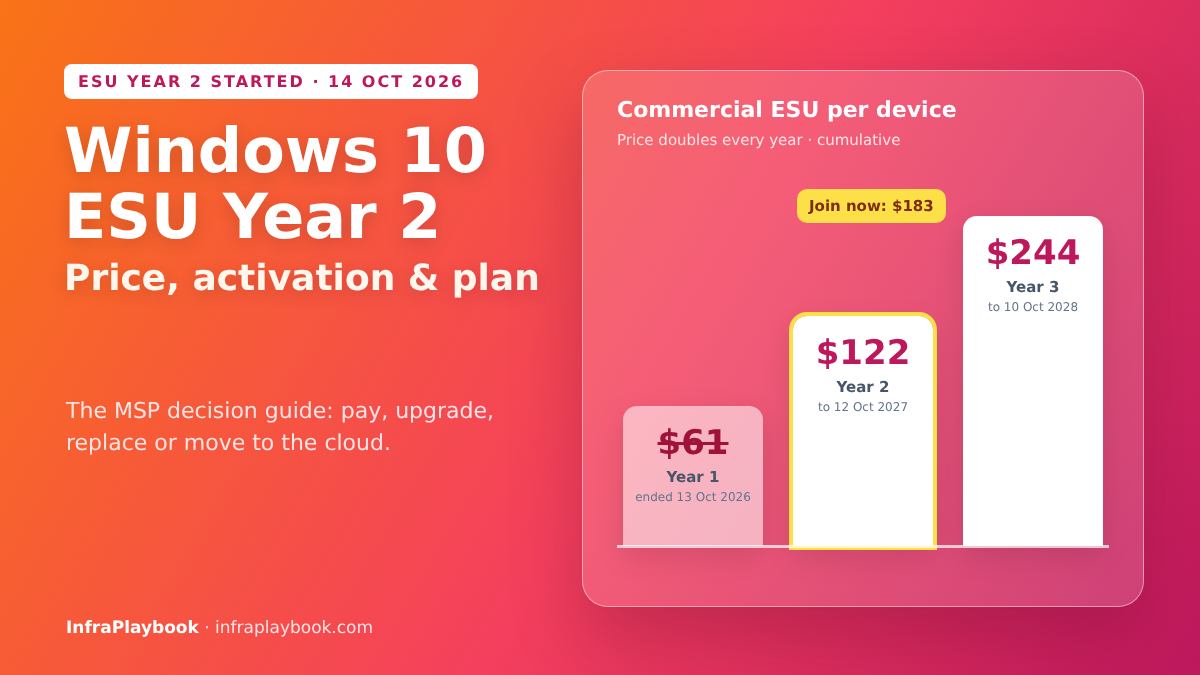
Windows 10 ESU Year 2 began on 14 October 2026. Commercial Extended Security Updates for Year 1 ended the day before, and the price has now doubled. Every business Windows 10 PC that isn’t upgraded, replaced or re-licensed is now one patch cycle away from being unprotected.
This guide explains what Year 2 costs, who gets it free, how activation works device by device, and how MSPs can turn the decision into a clear plan for each client. It’s written for the reality most SMBs face: a mix of PCs that can run Windows 11, PCs that can’t, and a few that must keep running Windows 10 for one more year.
Table of Contents
- Technical Overview & Background
- Windows 10 ESU Prices and Dates
- Core System Prerequisites
- Step-by-Step Implementation Guide
- Architecture & Component Breakdown
- Real-World Use Cases & Enterprise Examples
- Troubleshooting, Edge Cases & Best Practices
- FAQ
- Summary & Key Takeaways
Technical Overview & Background
Windows 10 reached end of support on 14 October 2025. Since then, Microsoft only ships security fixes to devices enrolled in the Extended Security Updates (ESU) programme.
ESU provides Critical and Important security updates only. It doesn’t include new features, non-security fixes or general technical support.
Two separate programmes
| Consumer ESU | Commercial ESU | |
|---|---|---|
| Who | Personal PCs on a Microsoft account | Business PCs (domain-joined, Entra-joined or MDM-managed) |
| Cost | Free (Windows Backup sync or 1,000 Rewards points) or $30 one-time for up to 10 devices | Per device, price doubles each year |
| Coverage | Through 12 October 2027 | Up to three years, one year at a time |
| Enrolment | Windows Update enrolment wizard | Volume licensing / CSP, MAK key activation |
Business PCs can’t use the consumer programme. Devices joined to Active Directory or Entra ID, or enrolled in MDM, are excluded.
Windows 10 ESU Prices and Dates
Commercial ESU (per device)
| Year | Coverage period | Price per device | If first enrolled now |
|---|---|---|---|
| Year 1 | 15 Oct 2025 – 13 Oct 2026 | $61 | — |
| Year 2 | 14 Oct 2026 – 12 Oct 2027 | $122 | $183 (Year 1 + Year 2) |
| Year 3 | 13 Oct 2027 – 10 Oct 2028 | $244 | $427 (all three years) |
ESU is cumulative. A device that skipped Year 1 must still pay for Year 1 to join in Year 2. There are no partial-year purchases.
Discounts and free routes
- Intune or Windows Autopatch managed devices: $45 for Year 1. The discount follows the same doubling pattern for later years. Confirm current figures with your licensing partner.
- Education: $1 for Year 1, doubling after that.
- Windows 10 in Windows 365 or Azure Virtual Machines: ESU included at no extra cost.
- Windows 10 PCs connecting to Windows 365 Cloud PCs: ESU included for up to three years with an active Windows 365 licence.
The cost comparison that matters
For one PC, three years of ESU costs $427. That’s roughly the price of a new entry-level business laptop. Paying ESU for more than one year only makes sense for devices with a real blocker, such as specialist software or hardware.
Core System Prerequisites
On each Windows 10 device
- Windows 10 version 22H2. Older builds can’t receive ESU.
- Latest cumulative update installed.
- The ESU licensing preparation package and servicing stack updates Microsoft lists for the coverage year (for Year 2, these include KB5066791 and KB5072653).
- Admin rights to install the product key.
Licensing
- ESU licences bought through CSP or volume licensing.
- The MAK (Multiple Activation Key) from the Microsoft 365 admin centre or Volume Licensing Service Center.
- Internet access for online activation, or phone activation for offline devices.
For the decision
- An inventory of every Windows 10 device, with hardware details.
- Windows 11 readiness: TPM 2.0, a supported CPU, UEFI with Secure Boot.
Step-by-Step Implementation Guide
Step 1 — Find every Windows 10 PC
Start your Windows 10 ESU Year 2 inventory from Active Directory:
Get-ADComputer -Filter 'OperatingSystem -like "Windows 10*" -and Enabled -eq $true' `
  -Properties OperatingSystem, OperatingSystemVersion, LastLogonDate |
  Select-Object Name, OperatingSystemVersion, LastLogonDate |
  Sort-Object LastLogonDate -Descending |
  Export-Csv .\win10-devices.csv -NoTypeInformation
From Intune, using Microsoft Graph:
Connect-MgGraph -Scopes "DeviceManagementManagedDevices.Read.All"
Get-MgDeviceManagementManagedDevice -All -Filter "operatingSystem eq 'Windows'" |
  Where-Object { $_.OsVersion -like '10.0.1904*' } |
  Select-Object DeviceName, OsVersion, Model, LastSyncDateTime |
  Export-Csv .\win10-intune.csv -NoTypeInformation
Windows 10 builds start with 10.0.19041–19045. Windows 11 starts at 10.0.22000.
Step 2 — Check Windows 11 readiness per device
Run this readiness check locally or through your RMM before you buy any Windows 10 ESU Year 2 licences:
$tpm  = Get-Tpm
$sb   = try { Confirm-SecureBootUEFI } catch { $false }
$cpu  = (Get-CimInstance Win32_Processor | Select-Object -First 1).Name
$ram  = [math]::Round((Get-CimInstance Win32_ComputerSystem).TotalPhysicalMemory / 1GB)
$disk = [math]::Round((Get-CimInstance Win32_LogicalDisk -Filter "DeviceID='C:'").Size / 1GB)
$spec = (Get-CimInstance -Namespace root\cimv2\security\microsofttpm -ClassName Win32_Tpm -ErrorAction SilentlyContinue).SpecVersion

[pscustomobject]@{
  Computer     = $env:COMPUTERNAME
  TpmPresent   = $tpm.TpmPresent
  TpmVersion   = ($spec -split ',')[0]
  SecureBoot   = $sb
  CPU          = $cpu
  RAMGB        = $ram
  DiskGB       = $disk
  Win11Likely  = ($tpm.TpmPresent -and ($spec -like '2.0*') -and $sb -and $ram -ge 4 -and $disk -ge 64)
}
Win11Likely is a quick screen. Confirm the CPU against Microsoft’s supported processor list or with PC Health Check before you plan an upgrade. Many devices fail only because TPM or Secure Boot is turned off in the BIOS. Turn them on and test again.
Secure Boot also matters for the 2026 certificate change. See our guide to the Secure Boot certificate expiration 2026.
Step 3 — Put each device in a bucket
| Bucket | Criteria | Action |
|---|---|---|
| Upgrade | Meets Windows 11 requirements | Upgrade in place (Intune feature update or setup) |
| Replace | Old, slow or unsupported CPU | New device; no ESU |
| ESU bridge | Blocked by an app or device that needs Windows 10 | Buy ESU Year 2 with an exit date |
| Cloud | Light users, contractors, kiosks | Windows 365 Cloud PC (ESU included for the endpoint) |
| Retire | Not used in 60+ days | Wipe and dispose |
Step 4 — Activate ESU Year 2 on bridge devices
After buying ESU licences, get the MAK from the Microsoft 365 admin centre (Billing → Your products) or the Volume Licensing Service Center. Then, on each device, in an elevated prompt:
# 1. Install the ESU product key (MAK) – once per device
cscript.exe //NoLogo C:\Windows\System32\slmgr.vbs /ipk XXXXX-XXXXX-XXXXX-XXXXX-XXXXX

# 2. Activate the Year 2 ESU licence using its activation ID
cscript.exe //NoLogo C:\Windows\System32\slmgr.vbs /ato 1043add5-23b1-4afb-9a0f-64343c8f3f8d

# 3. Verify
cscript.exe //NoLogo C:\Windows\System32\slmgr.vbs /dlv | Select-String -Pattern 'ESU|License Status'
A device first enrolled in Year 2 must also hold the Year 1 entitlement. Year 1’s activation ID is f520e45e-7413-4a34-a497-d2765967d094. Activate it the same way if the device wasn’t enrolled before. Each coverage year has its own activation ID, so check Microsoft’s ESU documentation each year.
Step 5 — Roll out activation at scale
Wrap the commands in a script for Intune (Devices → Scripts) or your RMM. Keep the MAK in your RMM’s secure variables, not hard-coded in the script:
param([Parameter(Mandatory)] [string] $EsuMak)

$slmgr  = "$env:SystemRoot\System32\slmgr.vbs"
$year1  = 'f520e45e-7413-4a34-a497-d2765967d094'
$year2  = '1043add5-23b1-4afb-9a0f-64343c8f3f8d'

cscript.exe //NoLogo $slmgr /ipk $EsuMak | Out-Null

foreach ($id in @($year1, $year2)) {
  $status = cscript.exe //NoLogo $slmgr /dlv $id | Out-String
  if ($status -notmatch 'License Status:\s+Licensed') {
    cscript.exe //NoLogo $slmgr /ato $id | Out-Null
  }
}

$y2 = cscript.exe //NoLogo $slmgr /dlv $year2 | Out-String
if ($y2 -match 'License Status:\s+Licensed') { Write-Output 'ESU Year 2: Licensed'; exit 0 }
else { Write-Output 'ESU Year 2: NOT licensed'; exit 1 }
The exit code lets Intune or the RMM report success and failure per device.
Step 6 — Upgrade compatible devices to Windows 11
In Intune, create a Feature update profile for Windows 11 (latest version) and assign it to the “Upgrade” group. For unmanaged PCs, use the Windows 11 Installation Assistant or setup from media.
Before upgrading:
- Back up user data (OneDrive Known Folder Move is the easiest way).
- Suspend BitLocker if your process changes firmware settings.
- Test line-of-business apps on a pilot group.
Step 7 — Track progress
# Remaining Windows 10 devices (rerun weekly)
(Get-ADComputer -Filter 'OperatingSystem -like "Windows 10*" -and Enabled -eq $true').Count
Report three numbers to every client: Windows 10 remaining, ESU-covered devices and devices with neither. The third number must reach zero.
Architecture & Component Breakdown
| Component | Role |
|---|---|
| ESU licence (CSP/VL) | Commercial entitlement per device, per year |
| MAK product key | Installed once on each device |
| Activation IDs | Separate ID for Year 1, Year 2 and Year 3 |
| slmgr.vbs | Installs the key, activates and verifies |
| Licensing preparation packages | Updates required before each year’s activation |
| Windows Update / WSUS / Intune | Delivers the ESU security updates once licensed |
| Intune / RMM | Scripted activation and reporting at scale |
| Windows 11 feature update | Upgrade path for compatible hardware |
| Windows 365 | Cloud option with ESU included for connecting Windows 10 endpoints |
Decision flow
Windows 10 device
   │
   ├─ Unused 60+ days? ─────────────────► Retire
   ├─ Meets Windows 11 requirements? ───► Upgrade (Intune feature update)
   ├─ Old / unsupported CPU, no blocker? ► Replace hardware
   ├─ Light or temporary user? ─────────► Windows 365 Cloud PC
   └─ App/device needs Windows 10? ─────► ESU Year 2 ($61 + $122 if new) + exit date
Real-World Use Cases & Enterprise Examples
1. MSP with 900 client PCs
The MSP’s inventory finds 210 Windows 10 PCs left. 120 pass the Windows 11 check after TPM and Secure Boot are enabled in the BIOS. 60 are replaced under each client’s hardware budget, 18 are retired, and only 12 get ESU Year 2 for specialist software. Paying ESU for all 210 would have cost $38,430 for devices that skipped Year 1. The bridge cost $2,196.
2. Dental practice with imaging software
Two imaging workstations run vendor software certified only on Windows 10. The practice buys ESU Year 2, isolates the PCs on a separate VLAN, and sets a hard date with the vendor for a Windows 11-certified version.
3. Manufacturer with shop-floor kiosks
Twenty kiosks on old hardware run a single browser app. Instead of buying ESU, the company moves them to thin clients connecting to Windows 365 Cloud PCs, which removes the Windows 10 problem from the shop floor.
4. Accounting firm on an annual hardware cycle
The firm planned to replace PCs in early 2027, which would leave a gap of a few months. Moving the replacement forward was cheaper and simpler than buying ESU Year 1 and Year 2 for every device. For pricing that project, see our guide to pricing out-of-scope MSP work.
5. Home users and very small offices
Personal PCs, not managed by a business, can still use the consumer ESU through 12 October 2027, often free with Windows Backup. Business-managed devices can’t use this route.
Troubleshooting, Edge Cases & Best Practices
slmgr /ato returns error 0xC004F050 or similar
Cause: wrong key type, missing preparation update, or the device isn’t on 22H2.
Fix: install the latest cumulative update and the ESU licensing preparation package, confirm winver shows 22H2, then retry.
Activation succeeds but no ESU updates arrive
Cause: WSUS or update policies don’t approve ESU updates, or the device hasn’t scanned since activation.
Fix: approve the security updates for Windows 10 22H2 in WSUS, or trigger a scan. Check slmgr /dlv for the Year 2 activation ID.
Device enrolled in consumer ESU but is now business-managed
Cause: consumer ESU doesn’t cover domain-joined, Entra-joined or MDM-managed PCs.
Fix: buy commercial ESU, or upgrade or replace the device.
Windows 11 upgrade blocked by TPM or Secure Boot
Cause: firmware settings are off, which is common on PCs from 2018–2020.
Fix: enable TPM (fTPM/PTT) and Secure Boot in the BIOS, update the firmware, then rerun the readiness check.
Offline devices can’t activate
Cause: no internet access for online activation.
Fix: use phone activation (slui 4), or a Volume Activation Management Tool (VAMT) proxy activation.
Windows 10 ESU Year 2 best practices
- Treat ESU as a bridge, not a plan. Give every ESU device an owner and an exit date.
- Check firmware settings before declaring a PC “not compatible”.
- Compare ESU costs to replacement costs per device, including the cumulative Year 1 fee.
- Store MAK keys in a secure vault, never in scripts or tickets.
- Use Intune or Autopatch where possible, for the discount and easier reporting.
- Report weekly until “Windows 10 with no ESU” reaches zero.
FAQ
How much does Windows 10 ESU Year 2 cost for businesses?
Commercial ESU Year 2 costs $122 per device. Because ESU is cumulative, a device that didn’t enrol in Year 1 must also pay the $61 Year 1 fee, so joining now costs $183 per device. Year 3 costs $244.
When does Windows 10 ESU Year 2 start and end?
Year 2 covers 14 October 2026 to 12 October 2027. Year 1 ended on 13 October 2026. Year 3, the final year, runs from 13 October 2027 to 10 October 2028.
What is the activation ID for Windows 10 ESU Year 2?
The Year 2 activation ID is 1043add5-23b1-4afb-9a0f-64343c8f3f8d. Install the ESU MAK with slmgr /ipk, then activate with slmgr /ato followed by the activation ID. Verify the result with slmgr /dlv.
Can business PCs use the free consumer ESU?
No. The consumer ESU programme excludes devices joined to Active Directory or Microsoft Entra ID and devices managed by MDM. Business PCs need commercial ESU, or they should be upgraded or replaced.
Is Windows 10 ESU free anywhere?
Yes. Windows 10 virtual machines in Windows 365 and Azure receive ESU at no extra cost. Windows 10 PCs that connect to Windows 365 Cloud PCs are also covered for up to three years with an active Windows 365 licence.
Summary & Key Takeaways
Windows 10 ESU Year 2 turns an old operating system into an expensive one. At $122 per device, or $183 if a device missed Year 1, most businesses are better off upgrading or replacing PCs and keeping ESU for a small number of genuine blockers.
Key takeaways:
- Year 1 ended 13 Oct 2026. Year 2 runs 14 Oct 2026 – 12 Oct 2027.
- Commercial price doubles each year: $61 → $122 → $244, and coverage is cumulative.
- Free routes: Windows 365, Azure VMs, and endpoints connecting to Windows 365 Cloud PCs.
- Activation:
slmgr /ipk <MAK>, thenslmgr /ato 1043add5-23b1-4afb-9a0f-64343c8f3f8d. - Check firmware first. Many “incompatible” PCs only need TPM and Secure Boot turned on.
- Bucket every device: upgrade, replace, cloud, ESU bridge or retire.
Related reading: Windows Server 2016 end of support and the Microsoft 365 price increase 2026.
Editorial note: Prices and dates are based on Microsoft’s ESU programme details as reported by eWeek/TechRepublic and PC Server and Parts. Later-year discounted prices follow Microsoft’s doubling rule. Confirm final pricing with your licensing partner.