
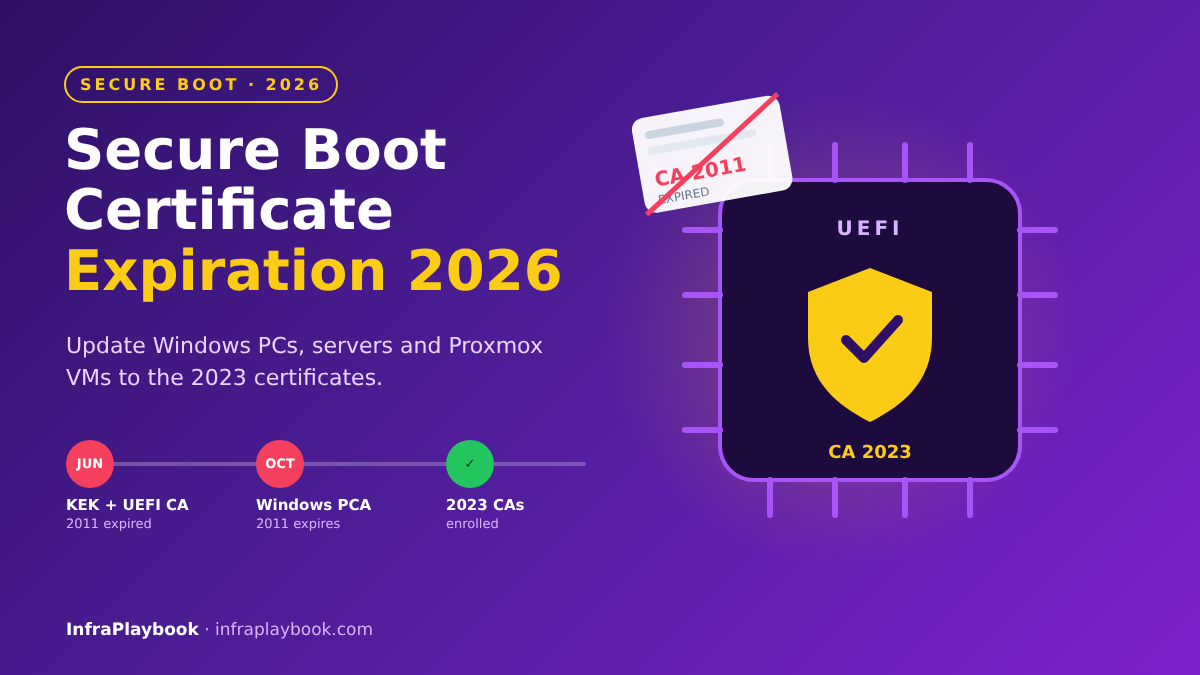
The Secure Boot certificate expiration 2026 is one of the quietest deadlines in IT. Microsoft’s original 2011 certificates, which almost every UEFI PC, server and VM trusts, started expiring in June 2026. The certificate that signs the Windows Boot Manager expires in October 2026.
Nothing stops booting on the day a certificate expires. The problem comes later: devices that still trust only the 2011 chain can’t receive new boot-level security fixes, and future boot media signed only with the 2023 certificates won’t start on them.
This guide explains exactly what is expiring, how to check every device, and how to complete the update on Windows clients, Windows Server, and Proxmox VMs.
Table of Contents
- Technical Overview & Background
- Which Certificates Expire and When
- Core System Prerequisites
- Step-by-Step Implementation Guide
- Architecture & Component Breakdown
- Real-World Use Cases & Enterprise Examples
- Troubleshooting, Edge Cases & Best Practices
- FAQ
- Summary & Key Takeaways
Technical Overview & Background
Secure Boot is a UEFI feature that only lets signed boot code run. The firmware keeps four key stores in NVRAM:
- PK (Platform Key): owned by the hardware vendor. It controls who may change the KEK.
- KEK (Key Exchange Key): authorises updates to the DB and DBX.
- DB (allowed signatures): certificates whose signed boot loaders may run.
- DBX (forbidden signatures): revoked boot loaders, such as vulnerable versions blocked after attacks like BlackLotus.
Since about 2012, almost every PC has shipped with three Microsoft certificates from 2011. Certificates have fixed lifetimes, and those are now ending.
Why “it still boots” is misleading
Firmware doesn’t check expiry dates when it verifies a signature, so existing boot loaders keep working. But Microsoft can’t sign anything new with an expired certificate. That means:
- No new DBX revocations can be delivered through the old KEK.
- New Windows Boot Manager versions are signed with the 2023 certificate.
- New Linux shims and option ROMs are increasingly signed with the 2023 CAs only.
A device left on the 2011 chain slowly drifts out of the security update stream.
Which Certificates Expire and When
| Expiring certificate | Expires | Replacement (2023) | What it signs |
|---|---|---|---|
| Microsoft Corporation KEK CA 2011 | June 2026 | Microsoft Corporation KEK 2K CA 2023 | Updates to DB and DBX |
| Microsoft Corporation UEFI CA 2011 | June 2026 | Microsoft UEFI CA 2023 | Third-party boot loaders (Linux shim, tools) |
| Microsoft Corporation UEFI CA 2011 | June 2026 | Microsoft Option ROM UEFI CA 2023 | Option ROMs (GPUs, RAID, NICs) |
| Microsoft Windows Production PCA 2011 | October 2026 | Windows UEFI CA 2023 | Windows Boot Manager |
To prepare for the Secure Boot certificate expiration 2026, Microsoft has been shipping the 2023 certificates through Windows Update since 2023. Many consumer PCs are already updated. Servers, VMs, offline systems and custom images usually are not.
Core System Prerequisites
Before you change anything
- BitLocker recovery keys for every affected device, escrowed in Entra ID, AD or your RMM.
- Current backups of servers and VMs.
- Latest cumulative update installed. Windows builds from April 2026 onward include better tooling (such as decoded Secure Boot output).
- Firmware/BIOS updates for devices older than about three to four years. Some old firmware can’t accept the new KEK.
Access and tooling
- Local admin or an RMM/Intune script channel.
- Group Policy or Intune to manage Secure Boot servicing policies (ADMX templates are available since October 2025).
- For VMs on Proxmox: Proxmox VE 9.2 or later, which adds a one-click action to enrol the updated certificates on a VM’s EFI disk. If you’re still on an older release, see our Proxmox 8 to 9 upgrade guide.
Step-by-Step Implementation Guide
Step 1 — Check whether a Windows device already has the 2023 certificate
To check the Secure Boot certificate expiration 2026 status of a device, run this in an elevated PowerShell:
# True = Windows UEFI CA 2023 is in the allowed DB
[System.Text.Encoding]::ASCII.GetString((Get-SecureBootUEFI -Name db).Bytes) -match 'Windows UEFI CA 2023'

# Servicing status written by Windows
Get-ItemProperty 'HKLM:\SYSTEM\CurrentControlSet\Control\SecureBoot\Servicing' -Name UEFICA2023Status -ErrorAction SilentlyContinue

# Is Secure Boot actually on?
Confirm-SecureBootUEFI
UEFICA2023Status reports NotStarted, InProgress or Updated.
On builds from April 2026 or later, you can view readable certificate details:
Get-SecureBootUEFI -Name KEK -Decoded
Get-SecureBootUEFI -Name db  -Decoded
Step 2 — Collect status across the fleet
Push this script through your RMM or Intune and gather the CSV:
$path = 'HKLM:\SYSTEM\CurrentControlSet\Control\SecureBoot'
$sb   = try { Confirm-SecureBootUEFI } catch { $false }
$db   = if ($sb) { [Text.Encoding]::ASCII.GetString((Get-SecureBootUEFI -Name db).Bytes) -match 'Windows UEFI CA 2023' } else { $null }

[pscustomobject]@{
  Computer         = $env:COMPUTERNAME
  SecureBootOn     = $sb
  DbHas2023        = $db
  UEFICA2023Status = (Get-ItemProperty "$path\Servicing" -ErrorAction SilentlyContinue).UEFICA2023Status
  AvailableUpdates = '0x{0:X}' -f ((Get-ItemProperty $path -ErrorAction SilentlyContinue).AvailableUpdates)
  LastEvent1801    = (Get-WinEvent -FilterHashtable @{LogName='System'; Id=1801} -MaxEvents 1 -ErrorAction SilentlyContinue).TimeCreated
  LastEvent1808    = (Get-WinEvent -FilterHashtable @{LogName='System'; Id=1808} -MaxEvents 1 -ErrorAction SilentlyContinue).TimeCreated
} | Export-Csv "C:\Temp\secureboot-$env:COMPUTERNAME.csv" -NoTypeInformation- Event 1801: update is prepared or still pending.
- Event 1808: update completed successfully.
Step 3 — Prepare BitLocker
Changing Secure Boot variables can trigger BitLocker recovery. Suspend protection for the next two restarts:
manage-bde -protectors -get C:          # confirm the recovery key is escrowed
Suspend-BitLocker -MountPoint 'C:' -RebootCount 2
Step 4 — Trigger the full certificate update (Windows Server and unmanaged clients)
Windows clients often update on their own over time. Windows Server usually does not, so start and monitor it yourself.
# Request all Secure Boot certificate updates (KEK, DB, boot manager)
Set-ItemProperty -Path 'HKLM:\SYSTEM\CurrentControlSet\Control\SecureBoot' `
  -Name 'AvailableUpdates' -Value 0x5944 -Type DWord

# Run the servicing task now instead of waiting up to 12 hours
Start-ScheduledTask -TaskName '\Microsoft\Windows\PI\Secure-Boot-Update'
Then restart. Check progress after each restart:
'0x{0:X}' -f (Get-ItemProperty 'HKLM:\SYSTEM\CurrentControlSet\Control\SecureBoot').AvailableUpdatesAvailableUpdates value | Meaning |
|---|---|
0x5944 | Full update requested |
0x4100 | Partly applied; run the task again and reboot |
0x4000 | Complete |
Most machines need two restarts. When the value reads 0x4000 and UEFICA2023Status reads Updated, the device is finished.
Step 5 — Manage it centrally with Group Policy or Intune
For larger estates, don’t hand-edit registries. Use the Secure Boot policy settings (ADMX templates available since October 2025), which write to HKLM\SYSTEM\CurrentControlSet\Control\SecureBoot. In Intune, deploy the equivalent settings or a remediation script built from Steps 2 and 4.
Also make sure WSUS, Intune update rings or GPOs don’t block Secure Boot servicing updates.
Step 6 — Update Proxmox VMs (host side)
A VM’s Secure Boot keys live in its EFI disk, not in Windows. On Proxmox, check each UEFI VM:
qm config 120 | grep efidisk0
# efidisk0: local-zfs:vm-120-disk-1,efitype=4m,pre-enrolled-keys=1,ms-cert=2023k,size=1M
ms-cert marker | Meaning |
|---|---|
| none | Only the 2011 certificates are enrolled |
ms-cert=2023 / 2023w | Partial: the 2023 KEK is missing |
ms-cert=2023k | Complete, including the 2023 KEK |
To enrol the updated certificates (Proxmox VE 9.2+):
qm shutdown 120 && qm wait 120   # the EFI disk can't change while the VM runs
qm enroll-efi-keys 120
qm config 120 | grep efidisk0    # expect ms-cert=2023k
qm start 120
Or in the GUI: VM → Hardware → EFI Disk → Disk Action → Enroll Updated Certificates.
List every VM that still needs it:
for id in $(qm list | awk 'NR>1 {print $1}'); do
  line=$(qm config "$id" | grep '^efidisk0' || true)
  [ -z "$line" ] && continue                          # BIOS/SeaBIOS VM, not affected
  echo "$line" | grep -q 'ms-cert=2023k' || echo "VM $id needs enrollment: $line"
done
Back up first (see our Proxmox Backup Server setup guide). Then complete Steps 3 and 4 inside each Windows guest, so Windows also moves its boot manager to the 2023-signed version.
Step 7 — Linux systems
- Most distributions boot through shim, signed by the Microsoft UEFI CA 2011. Existing installs keep booting.
- Newer shims signed with the UEFI CA 2023 need that certificate in the DB. Apply firmware or
fwupdupdates for the KEK/DB where your vendor supports it:
fwupdmgr refresh && fwupdmgr get-updates
mokutil --sb-state
mokutil --db | grep -i "2023"
On Proxmox, enrolling the updated certificates on the host side (Step 6) is usually enough for Linux guests.
Step 8 — Verify and record
On each Windows device, confirm:
AvailableUpdates= 0x4000UEFICA2023Status= Updated- Event 1808 present, no new 1801 events
- Windows Security → Device security shows Secure Boot on
Keep the fleet CSV from Step 2 as audit evidence.
Architecture & Component Breakdown
| Component | Where it lives | Role |
|---|---|---|
| PK | Firmware NVRAM | OEM root of trust; authorises KEK changes |
| KEK | Firmware NVRAM | Signs DB/DBX updates (2011 → 2023) |
| DB | Firmware NVRAM | Trusted signers (needs Windows UEFI CA 2023, UEFI CA 2023) |
| DBX | Firmware NVRAM | Revoked boot loaders |
| Windows Boot Manager | EFI system partition | Re-signed with the 2023 CA |
| Secure-Boot-Update task | Windows Task Scheduler | Applies the queued certificate updates |
| AvailableUpdates / UEFICA2023Status | Registry | Request and progress flags |
| Events 1801 / 1808 | System event log | Pending / completed |
| VM EFI disk (Proxmox) | VM storage | The VM’s own NVRAM with its key stores |
Update flow
Windows Update ships 2023 certs
        │
AvailableUpdates = 0x5944 ──► Secure-Boot-Update task
        │
        ├─ add Windows UEFI CA 2023 + UEFI CA 2023 to DB
        ├─ add KEK 2K CA 2023 (signed by OEM PK)
        └─ swap boot manager to 2023-signed version
        ▼
reboot (x2) ──► AvailableUpdates = 0x4000, UEFICA2023Status = Updated, Event 1808

Proxmox VM: qm enroll-efi-keys <vmid> ──► EFI disk ms-cert=2023k ──► then Windows steps
Real-World Use Cases & Enterprise Examples
1. MSP with 1,500 endpoints
The fleet script shows 82% of laptops already Updated through Windows Update. The remaining 18% are older models needing a BIOS update first, plus a few devices where a GPO was blocking servicing. The MSP fixes the policy, schedules firmware updates, and reports progress weekly.
2. Windows Server estate
None of the 60 servers had started the update. The team applies Step 4 in maintenance windows alongside regular patching, suspending BitLocker where used. It fits naturally with the Windows Server 2016 end of support project already under way.
3. Proxmox cluster after a VMware exit
A Proxmox 9.2 cluster runs 120 UEFI VMs. The loop script finds 97 without ms-cert=2023k. The team enrols certificates during planned shutdowns, then runs the Windows steps inside each guest. They also update the VM template, so new clones start compliant (see our Proxmox Terraform provider guide).
4. Air-gapped industrial PCs
Offline systems never received the update. The team builds an offline package: the latest cumulative update, the registry change and the scheduled task trigger, applied by a technician on site with the BitLocker key ready.
5. Golden images and PXE boot media
Old WDS/PXE and USB recovery media still use the 2011-signed boot manager. The team rebuilds images from current media, so they keep working once devices trust only the 2023 chain and revoke the old boot manager.
Troubleshooting, Edge Cases & Best Practices
AvailableUpdates stays at 0x5944
Cause: the scheduled task hasn’t run, or the device hasn’t restarted.
Fix: run Start-ScheduledTask again, restart, and check the System log for Secure Boot events.
Event 1801 keeps appearing
Cause: firmware rejected the KEK update. This is common on old BIOS versions or custom PKs.
Fix: update the BIOS/UEFI firmware. If the OEM offers no update, record the device as an exception and plan its replacement.
BitLocker asks for the recovery key after the update
Cause: Secure Boot measurements changed while protection was active.
Fix: enter the recovery key. Next time, suspend BitLocker for two restarts first (Step 3).
Get-SecureBootUEFI errors with “Variable is currently undefined”
Cause: the system boots in legacy BIOS mode, or Secure Boot is off.
Fix: this device isn’t affected by Secure Boot updates. Consider moving it to UEFI with Secure Boot as part of a rebuild.
Proxmox VM has no “Enroll Updated Certificates” option
Cause: Proxmox VE older than 9.2, or the VM uses SeaBIOS.
Fix: upgrade the cluster to 9.2+. SeaBIOS VMs don’t use Secure Boot.
Linux VM won’t boot after a shim update
Cause: the new shim is signed only with the UEFI CA 2023, which isn’t in the DB.
Fix: enrol the 2023 certificates (on Proxmox, qm enroll-efi-keys), or boot the previous kernel/shim and update firmware first.
Secure Boot certificate expiration 2026 best practices
- Don’t disable Secure Boot to “fix” the problem. That removes protection against boot-level malware.
- Escrow BitLocker keys before you start.
- Update firmware on older hardware first.
- Start Windows Server updates manually. Don’t wait for automatic servicing.
- Update VM templates and golden images, not just running systems.
- Track status centrally with the fleet script and events 1801/1808.
- Handle offline and custom-PK devices as separate exceptions.
FAQ
Will my computers stop booting when the Secure Boot certificates expire?
No. Firmware doesn’t check certificate expiry during boot, so existing signed boot loaders keep working. But devices without the 2023 certificates stop receiving new boot-level security updates and may not boot future media signed only with the new certificates.
Which Microsoft Secure Boot certificates expire in 2026?
Microsoft Corporation KEK CA 2011 and Microsoft Corporation UEFI CA 2011 expire in June 2026. Microsoft Windows Production PCA 2011, which signs the Windows Boot Manager, expires in October 2026. Each is replaced by a 2023 certificate.
Does Windows update Secure Boot certificates automatically?
Many Windows client PCs receive the update through Windows Update over time. Windows Server and many managed or offline systems need the update started and monitored by an administrator, for example by setting AvailableUpdates to 0x5944 and running the Secure-Boot-Update task.
How do I update Secure Boot certificates on a Proxmox VM?
On Proxmox VE 9.2 or later, shut down the VM and run qm enroll-efi-keys with the VM ID, or use Enroll Updated Certificates on the EFI disk in the web interface. The EFI disk then shows ms-cert=2023k. For Windows guests, also complete the Windows update steps inside the VM.
How can I confirm the update worked?
The AvailableUpdates value should be 0x4000, UEFICA2023Status should read Updated, and Event 1808 should appear in the System log. Searching the Secure Boot DB for Windows UEFI CA 2023 in PowerShell should return True.
Summary & Key Takeaways
The Secure Boot certificate expiration 2026 won’t stop your machines today, but it decides whether they stay inside Microsoft’s boot security updates. Clients often update themselves. Servers, VMs, offline systems and images need deliberate work.
Key takeaways:
- June 2026: KEK CA 2011 and UEFI CA 2011 expired. October 2026: Windows Production PCA 2011 expires.
- Check status with PowerShell,
UEFICA2023Statusand events 1801/1808. - Trigger updates with
AvailableUpdates = 0x5944and the Secure-Boot-Update task, then restart twice. - Done means
0x4000and Updated. - Proxmox VMs:
qm enroll-efi-keyson 9.2+, aiming forms-cert=2023k, then the Windows steps inside the guest. - Suspend BitLocker, update firmware, never disable Secure Boot.
Next in this series: Proxmox Ceph Setup: Hardware Sizing, Networking and the Mistakes That Kill Performance.
Editorial note: Certificate dates and Windows servicing steps follow Microsoft’s published guidance as summarised by Claranet and IT-Connect. Test on a small group of devices before broad rollout.