
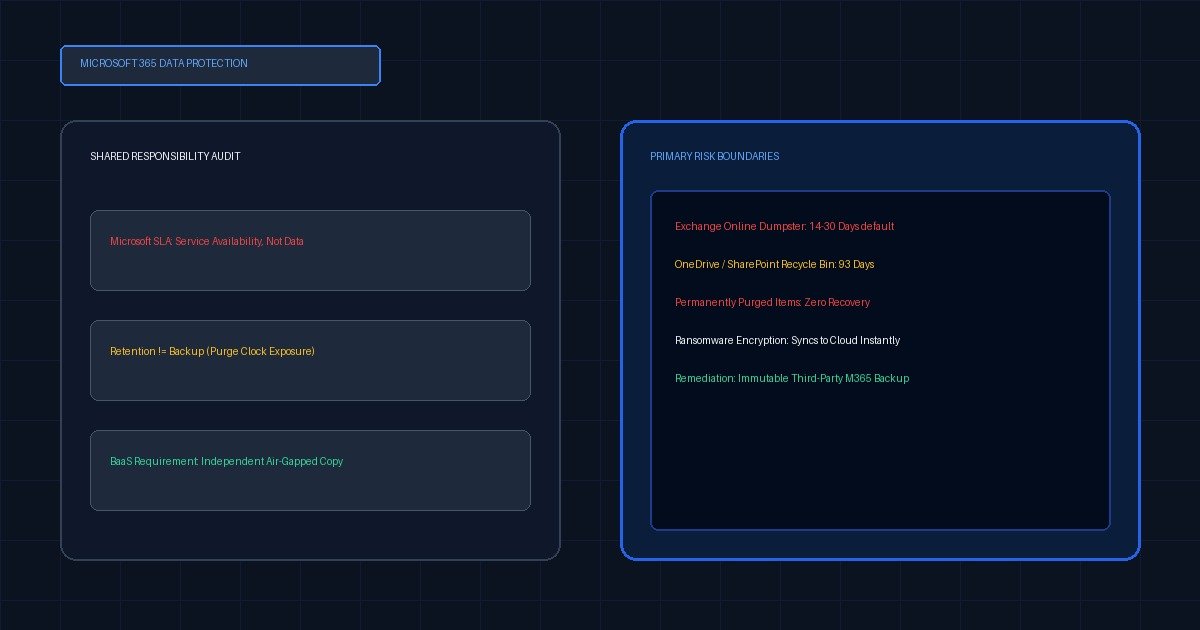
No. Microsoft replicates your data for their disaster recovery, not yours. Retention is limited and per-service: SharePoint and OneDrive hold deleted items 93 days, Exchange 14 by default. Under the shared responsibility model, protecting Exchange, SharePoint, OneDrive, Teams and Entra ID data against deletion, ransomware and departing staff is your obligation, not Microsoft’s.
Search this question and every result on the first page is published by a company that sells backup software. Each one answers “no” and then, three paragraphs later, explains what you should buy.
They are not wrong. They are just not disinterested, and it shows in what they leave out: none of them publishes the actual retention window for each service in a single table. A clear table weakens the pitch, because a clear table shows you the several situations where the native tooling is genuinely enough.
This page is the table, plus what it means. There is nothing to buy here.
- Microsoft’s replication protects against their failure modes — a data-centre outage, a hardware fault, a corrupted storage node. It does not protect against yours: a user deleting a folder, an admin misconfiguring retention, ransomware encrypting a synced OneDrive, or an employee leaving with a mailbox.
- Retention windows are per-service and are not the same number. SharePoint and OneDrive: 93 days across both recycle bin stages. Exchange Recoverable Items: 14 days by default, 30 days maximum. Soft-deleted mailboxes, users and groups: 30 days. None of these is a backup — all of them are a grace period that starts at deletion, not at discovery.
- The shared responsibility model is published by Microsoft, not invented by backup vendors. Microsoft owns the infrastructure, the uptime and the physical security. You own the data, the identities and the access controls.
- A retention policy and a backup are different objects. A retention policy governs what is kept, and for how long, inside the tenant. A backup is an independent copy outside the failure domain. Confusing the two is the most common cause of an unrecoverable Microsoft 365 incident.
- Microsoft now sells a first-party backup product. It is real, it is fast, and it restores in place — but it keeps your data inside Microsoft’s fault domain, which is a different guarantee from an independent copy. Compare it as one option, not as the obvious answer.
Does Microsoft 365 back up my data?
No. Microsoft replicates your data across data centres so that a hardware or site failure does not take your tenant offline. That is availability engineering, and it protects Microsoft’s service level, not your data. If a user deletes a folder, an admin purges a mailbox, ransomware encrypts a synced OneDrive, or a leaver’s account is removed, replication faithfully replicates the damage. What you have instead is a set of short, per-service recovery windows.
This distinction is the entire subject. Microsoft’s Service Level Agreement commits to uptime. Nothing in it commits to recovering data you deleted, and nothing in it commits to recovering data an attacker deleted using your credentials. Those are two different products, and only one of them is included.
The clearest way to see it is to follow one incident through. A workstation with the OneDrive sync client running gets hit by ransomware. The encryptor rewrites every file in the synced folder. The sync client does exactly what it is designed to do: it detects the local change and uploads it. Within minutes the cloud copy is the encrypted copy. Replication then dutifully copies that encrypted copy to every other data centre in the region. At no point has anything failed — the platform performed correctly, and the outcome is total.
What actually saves you in that scenario is not the recycle bin, because the files were modified rather than deleted and never entered it. It is version history, and OneDrive’s Files Restore, which rolls an entire library back to a point in time using those versions. That is a real capability and it is included, which is precisely the kind of nuance a vendor page has no incentive to mention. It also has real limits. It depends on versioning being enabled and on enough versions being retained; a slow encryptor that runs for weeks can push clean versions out of the retention window before anyone notices; and it does nothing for a file created after the last good version. Treat it as the first thing you reach for, not as the reason you need nothing else.
How long does Microsoft actually keep deleted data?
Between 14 and 93 days, depending entirely on which service you are asking about. SharePoint and OneDrive hold deleted items for 93 days across both recycle bin stages. Exchange Online holds items in the Recoverable Items folder for 14 days by default, configurable to a 30-day maximum. Soft-deleted mailboxes, Entra ID users and Microsoft 365 groups are retained 30 days. After those windows, the data is gone permanently and no support ticket recovers it.
The per-service retention matrix
This is the table nobody publishes. Verify these values against Microsoft Learn on your publication date and state that date here — these windows change, and the value of this table is entirely that its numbers are current.
Values as at 27 August 2026.
| Service / object | Default retention | Configurable maximum | Restorable by | What it does not protect against |
|---|---|---|---|---|
| Exchange — Deleted Items folder | Until user empties, or per policy | Governed by retention policy | End user | Anything the user deletes deliberately, then empties |
| Exchange — Recoverable Items (“dumpster”) | 14 days | 30 days | End user (Recover Deleted Items), then admin | A deletion nobody notices for a month. This is the shortest window on the page. |
| Exchange — soft-deleted mailbox | 30 days | 30 days | Admin | Offboarding a leaver and needing the mailbox in month two |
| SharePoint — site recycle bin (stage 1) | 93 days (shared clock) | 93 days | Site owner | Deletion of the site itself; ransomware that encrypts rather than deletes |
| SharePoint — site collection recycle bin (stage 2) | Remainder of the same 93 days | 93 days | Site collection admin | Anyone assuming stage 2 adds 93 more days. It does not — one clock. |
| SharePoint — deleted site | 93 days | 93 days | Admin (PowerShell) | Permanent purge before day 93 |
| OneDrive — recycle bin | 93 days | 93 days | End user | Ransomware syncing encrypted files up; version history is the defence, not the bin |
| OneDrive — leaver’s account | 30 days after user deletion | Up to 3,650 days (configurable) | Admin | Default settings. The 30-day default is the one that catches people. |
| Teams — 1:1 and group chat | Stored in hidden Exchange folders; follows mailbox policy | Per retention policy | Admin (eDiscovery) | Casual restore. There is no “undelete this chat” button. |
| Teams — channel messages | Stored in the group mailbox; follows group policy | Per retention policy | Admin (eDiscovery) | Selective single-message restore |
| Teams — files | The underlying SharePoint site — 93 days | 93 days | Site owner | Nothing extra. Teams files are SharePoint files. |
| Teams — deleted team | 30 days (soft-deleted group) | 30 days | Admin | Recovery in month two |
| Entra ID — deleted user | 30 days | 30 days | Admin | Permanent deletion, or a purge before day 30 |
| Entra ID — deleted group | 30 days | 30 days | Admin | Group membership changes, which are not versioned at all |
| Entra ID — conditional access / config | Not retained | — | Nobody | Every configuration mistake. Export your config; nothing restores it. |
Three things fall out of this table that are worth more than the numbers.
The 93 days is one clock, not two. The two-stage recycle bin looks like 93 + 93. It is not. Stage 2 inherits whatever remains of the original 93 days. This is the single most common misreading of SharePoint retention.
The shortest window is the one you rely on most. Exchange Recoverable Items defaults to 14 days. Most tenants never change it. Most data-loss incidents are discovered well after 14 days, because the whole problem with a quiet deletion is that it is quiet.
Configuration has no retention at all. Every row above is about content. None of it covers conditional access policies, transport rules, or group membership. Those you export or you lose.
Why Teams occupies four rows
Because Teams is not a storage system. It is an interface over three of them, and each one keeps your data under a different rule. Channel messages live in the mailbox of the underlying Microsoft 365 group. One-to-one and group chats live in hidden folders inside each participant’s own mailbox. Files shared in a channel are not Teams files at all — they are documents in the SharePoint site that was provisioned when the team was created, and they follow SharePoint’s 93-day clock like any other file on that site.
This matters when someone asks you to restore a conversation. There is no undelete button, because there is no single object to undelete. Recovering a chat means an eDiscovery search against the right mailboxes, which is an admin task with a licensing prerequisite, not something a team owner does on a Tuesday afternoon. Recovering a file someone dragged into a channel means going to the SharePoint recycle bin for the associated site, which most users do not know exists and cannot find from inside Teams. And deleting a team soft-deletes the group for 30 days while leaving the SharePoint content on its own separate timer — so the two halves of the same workspace expire on different days.
What is the shared responsibility model, in plain terms?
Microsoft is responsible for the platform; you are responsible for what is in it. Microsoft owns physical security, host infrastructure, network controls, service availability and the application layer. You own your data, your identities, your devices, your access permissions and your retention configuration. Microsoft publishes this division themselves — it is not a framing invented by backup vendors, though backup vendors quote it constantly because it happens to describe their market.
The practical translation is short. If the loss came from Microsoft’s side of the line, Microsoft fixes it and you probably never notice. If the loss came from your side — a deletion, a misconfiguration, a compromised credential, a departing employee — Microsoft’s position is that you had the controls and the retention settings available to you. Backup vendors publish their own readings of this split — AvePoint’s write-up of the shared responsibility model is a representative one — and they are accurate on the mechanics even though they have an obvious commercial interest in where you draw the line.
What does Microsoft’s own backup product cover?
Microsoft 365 Backup is a first-party, pay-as-you-go service that backs up Exchange Online mailboxes, OneDrive accounts and SharePoint sites, with fast in-tenant restore at scale and retention well beyond the native windows. What it does not do is put a copy outside Microsoft’s fault domain, and it does not cover Entra ID configuration. It is a genuine improvement on native retention. It is not an independent copy, which is a different guarantee.
That distinction decides the buying question. If your risk model is “someone deleted something and we noticed late,” the first-party product addresses it directly and simply. If your risk model includes tenant-level compromise, a malicious admin, a billing lapse that suspends the tenant, or a compliance requirement for a copy held outside the provider — none of those are addressed by a backup that lives inside the same tenant.
Verify the current coverage boundary before you rely on this paragraph. This product is actively developing, its scope has expanded since launch, and an article that describes last year’s boundary is worse than useless to someone making a purchasing decision. Check the current scope against Microsoft’s own overview of Microsoft 365 Backup before you commit to a design.
Is a retention policy the same as a backup?
No, and the difference is where the copy lives. A retention policy governs what is kept inside the tenant and for how long — it can preserve items a user deletes, but it operates within the same system, under the same admin credentials, subject to the same compromise. A backup is an independent copy held outside that failure domain. A retention policy protects against accidents. Only an external copy protects against the tenant itself.
Retention policies are genuinely powerful and widely underused. Configured properly they will preserve deleted mail and files well past the default windows, and for a large share of real incidents that is sufficient. But they share a fate with the thing they protect. An attacker with Global Administrator can alter retention policy. A tenant suspended for a billing failure takes its retention policies with it. The question is never “is retention good enough” in the abstract — it is “good enough against which failure.”
There is a practical test that settles the argument faster than any comparison table. Pick a document that was deleted more than 30 days ago, and try to get it back. Not a document you deliberately planted for the test — a real one, chosen by someone other than the person running the test. Time how long it takes, note how many admin consoles you had to open, and note whether you needed a licence you were not sure you had. Teams that believe their retention configuration is sufficient usually believe it because nobody has ever asked them to prove it under a clock. If the answer comes back in ten minutes, your retention posture is genuinely doing the job. If it takes an afternoon and two escalations, what you have is not a recovery capability — it is a recovery hypothesis.
When you genuinely do not need third-party M365 backup
Three cases. If your tenant is small and your real records live in a line-of-business system rather than Outlook and SharePoint, native retention covers your exposure and per-user backup licensing is waste. If you hold compliance licensing with retention configured, tested and monitored, you cover most of the recovery surface — buy the residual, not the whole thing. And if you already run an enterprise backup platform with a Microsoft 365 connector, a second vendor adds a restore path nobody rehearses.
Take each of those seriously rather than as a disclaimer.
The small tenant with transient content. A twelve-person firm whose contracts live in a practice management system, whose finance data lives in an accounting platform, and whose Microsoft 365 tenant is genuinely just email and a shared drive of working documents — that firm’s catastrophic-loss scenario is not in Microsoft 365. Paying per user per month to protect the least important data in the business is a cost with no matching risk. Configure retention properly, export the Entra ID configuration, and spend the money on the systems that would actually end you.
The tenant that already has compliance licensing. If you hold a licence tier that includes retention policies and you have actually configured them — configured, tested with a real restore, and monitored for drift — you already cover accidental deletion, most insider deletion, and long-tail discovery. The residual risk is tenant-level: compromise, malicious admin, provider lockout. That residual is real, but it is a much smaller thing to buy for than “we have no backup.”
The org with an existing enterprise backup platform. If Microsoft 365 is one of eight workloads on a platform your team already operates, adding a purpose-built M365 vendor gives you a second console, a second restore procedure and a second support relationship. Restore paths that are not rehearsed do not work under pressure. One rehearsed path beats two theoretical ones.
What none of these three cases means: that backup is optional in general. It means the decision has inputs, and the inputs are your data gravity, your existing licensing and your operational capacity — not the conclusion a vendor reached before you arrived.
What to do this week
- Check your Exchange Recoverable Items window. If it is still 14 days, decide deliberately whether to raise it to 30.
- Check the OneDrive leaver retention setting. The 30-day default is rarely the right answer.
- Export your Entra ID configuration — conditional access policies, named locations, transport rules. Nothing restores these.
- Perform one real restore. Not a test of the backup console; a restore of a real file that a real person then opens. An unrehearsed restore path is a plan, not a capability.
- Write down which of the failure modes in the matrix you are actually protected against today. Most teams discover the answer is shorter than they expected.
Two things follow from here. The single most common way this bites is offboarding, where a licence is removed and a 30-day clock starts that nobody is watching — the mechanics are in what happens to mailbox and OneDrive data when a licence is removed. And if you are an MSP deciding what to charge for the protection this page argues for, what a backup line item should cost per seat has the buildup.
Sources
- Microsoft Learn — data retention, deletion and destruction in Microsoft 365 — primary source for every retention value in the matrix.
- AvePoint — the Microsoft 365 shared responsibility model.
- Microsoft 365 Backup decision guide — first-party product coverage boundary.
- Microsoft 365 Service Level Agreement and Trust Center — for the uptime-versus-data-loss distinction.
1 thought on “Does Microsoft 365 Back Up My Data? (The Shared Responsibility Trap)”
Comments are closed.