
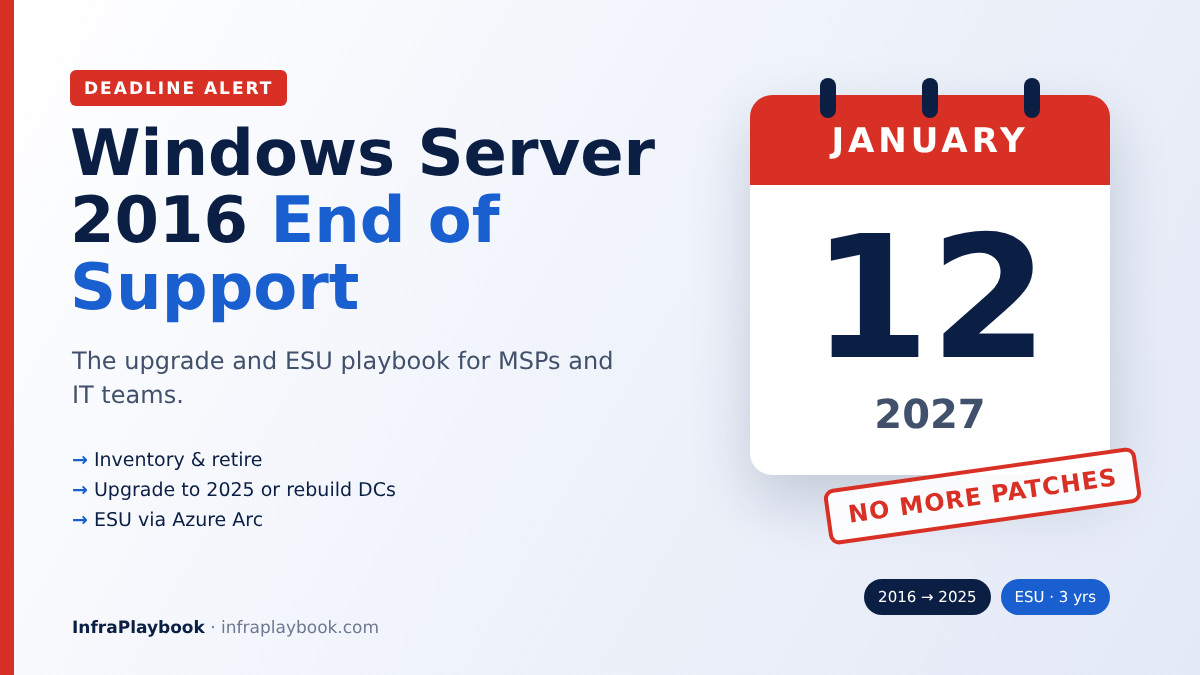
Windows Server 2016 end of support arrives on 12 January 2027. After that date, Microsoft stops shipping security updates unless you pay for Extended Security Updates (ESU). That is less than three months away, and many SMB and MSP estates still run 2016 domain controllers, file servers and line-of-business VMs.
This playbook is built for that deadline. It covers how to find every 2016 server, which upgrade paths Microsoft supports, how to replace domain controllers safely, and when ESU is the honest answer.
The same date also matters for virtualised estates. If your 2016 VMs run on Proxmox, the CPU settings section below will save you a failed upgrade.
Table of Contents
- Technical Overview & Background
- Your Four Options Explained
- Core System Prerequisites
- Step-by-Step Implementation Guide
- Architecture & Component Breakdown
- Real-World Use Cases & Enterprise Examples
- Troubleshooting, Edge Cases & Best Practices
- FAQ
- Summary & Key Takeaways
Technical Overview & Background
Microsoft supports Windows Server under the Fixed Lifecycle Policy: five years of mainstream support, then five years of extended support. Windows Server 2016 launched in October 2016, so extended support ends on 12 January 2027.
Key dates around the deadline
| Product | End of support | Notes |
|---|---|---|
| SQL Server 2016 | 14 July 2026 | Already out of support; ESU available |
| Windows 10 Enterprise LTSB 2016 | 13 October 2026 | ESU via volume licensing and CSP |
| Windows Server 2012 / 2012 R2 ESU | 13 October 2026 | Final ESU year ended |
| Windows Server 2016 | 12 January 2027 | ESU available for up to three years |
What “end of support” really means
- No security updates after the January 2027 Patch Tuesday, unless the server is enrolled in ESU.
- No non-security fixes or new features (these stopped at end of mainstream support in 2022).
- No Microsoft technical support for the product.
- Compliance exposure. Cyber insurance, PCI DSS and most audit frameworks treat unpatched operating systems as a finding.
The server keeps running. The risk builds quietly, which is exactly why deadlines slip.
Your Four Options Explained
For Windows Server 2016 end of support, every server should end up in exactly one of these buckets.
| Option | Best for | Effort | Ongoing cost |
|---|---|---|---|
| 1. In-place upgrade | Standalone member servers with simple roles | Low–medium | New licence |
| 2. Side-by-side rebuild | Domain controllers, file servers, anything old and messy | Medium | New licence |
| 3. Move to Azure | Workloads that need ESU time or are cloud-bound anyway | Medium | Azure compute (ESU included for eligible VMs) |
| 4. Buy ESU (bridge) | Apps that can’t move before January | Low | ESU fees, rising each year |
| (5. Retire) | Servers nobody can name an owner for | Low | Zero |
Retiring is the most underrated option. Most estates find several 2016 servers that no longer run anything important.
Which target version?
- Windows Server 2025 is the current long-term release and the sensible default for new builds.
- Windows Server 2022 is still in support until 2031, and may suit applications whose vendors haven’t certified 2025 yet.
- Windows Server 2019 extended support ends in January 2029. It’s rarely worth choosing now, except as a stepping stone for clusters.
Core System Prerequisites
Inventory and ownership
- A complete list of 2016 servers: physical, virtual, branch-office and vendor appliances.
- An owner and business purpose for each.
- Edition and core count for licensing (Standard vs Datacenter, physical cores or vCPUs).
Licensing
- Windows Server 2025 licences for upgraded or rebuilt servers. Core-based licensing applies: at least 16 cores per server and 8 cores per processor.
- Windows Server 2025 CALs. A 2025 CAL covers 2025 and earlier, but older CALs do not cover 2025.
- For ESU on-premises: Software Assurance or a qualifying subscription, and Azure Arc connection.
Technical checks
- CPU support for SSE4.2 and POPCNT. Windows Server 2025 will not install without them. This matters for VMs with generic CPU types.
- Backups and a tested restore for every server before you touch it.
- Vendor support statements for each application on the target version.
- Free disk space: plan for at least 32 GB extra on the system drive for an in-place upgrade.
Step-by-Step Implementation Guide
Step 1 — Inventory every Windows Server 2016 machine
Your Windows Server 2016 end of support plan starts with an inventory. From any domain-joined machine with the Active Directory module:
Import-Module ActiveDirectory

Get-ADComputer -Filter 'OperatingSystem -like "*Server 2016*"' `
  -Properties OperatingSystem, OperatingSystemVersion, LastLogonDate, IPv4Address, Description |
  Select-Object Name, OperatingSystem, OperatingSystemVersion, IPv4Address,
                @{n='LastLogon';e={$_.LastLogonDate}}, Description |
  Sort-Object LastLogon -Descending |
  Export-Csv .\ws2016-inventory.csv -NoTypeInformation

(Import-Csv .\ws2016-inventory.csv).Count
Servers with a LastLogon older than 90 days are often dead or forgotten. Confirm before you plan work on them.
AD only shows domain-joined machines. Also check your hypervisor (Proxmox, Hyper-V, vSphere) and RMM for workgroup servers and appliances.
Step 2 — Collect roles and dependencies
Run this against the inventory to see what each server actually does:
$servers = (Import-Csv .\ws2016-inventory.csv).Name

$report = foreach ($s in $servers) {
  try {
    $roles = Invoke-Command -ComputerName $s -ErrorAction Stop -ScriptBlock {
      (Get-WindowsFeature | Where-Object { $_.Installed -and $_.FeatureType -eq 'Role' }).Name -join ', '
    }
    [pscustomobject]@{ Server = $s; Roles = $roles; Reachable = $true }
  } catch {
    [pscustomobject]@{ Server = $s; Roles = ''; Reachable = $false }
  }
}
$report | Export-Csv .\ws2016-roles.csv -NoTypeInformation
Tag each server with a bucket from the options table: upgrade, rebuild, Azure, ESU or retire.
Step 3 — Check CPU compatibility (critical on VMs)
Windows Server 2025 needs SSE4.2 and POPCNT. On Proxmox, VMs set to the old kvm64 CPU type don’t expose them, so setup fails.
On the Proxmox host:
# Show the CPU type of VM 120
qm config 120 | grep ^cpu

# Switch to a modern baseline that exposes SSE4.2/POPCNT (requires a VM restart)
qm set 120 --cpu x86-64-v2-AES
Use host only if the VM never live-migrates between different CPU generations. Also update the VirtIO drivers inside the guest before upgrading. If your Proxmox hosts are still on 8.x, see our Proxmox 8 to 9 upgrade guide.
Step 4 — Back up and snapshot
# Proxmox example: snapshot-mode backup to PBS before the upgrade
vzdump 120 --storage pbs-store1 --mode snapshot --notes-template "pre-ws2025-upgrade {{guestname}}"
A snapshot is not a backup. Make sure a restorable copy exists, as covered in our Proxmox Backup Server setup guide.
Step 5 — In-place upgrade (standalone member servers)
Microsoft supports a direct in-place upgrade from Windows Server 2016 to 2019, 2022 or 2025 using installation media for non-clustered servers.
- Mount the Windows Server 2025 ISO.
- Run
setup.exefrom inside the running 2016 server. - Choose “Upgrade: keep files, settings and apps”.
- Pick the same edition and the same installation option. Desktop Experience can’t switch to Server Core in place, or the other way round.
- Enter your 2025 product key or KMS/AVMA setup.
Before you start, check the upgrade blockers:
# Pending reboots block setup
Test-Path 'HKLM:\SOFTWARE\Microsoft\Windows\CurrentVersion\Component Based Servicing\RebootPending'

# Free space on C:
Get-PSDrive C | Select-Object Used, Free

# Patch level: install the latest 2016 cumulative update first
Get-HotFix | Sort-Object InstalledOn -Descending | Select-Object -First 3
After the upgrade, verify:
Get-ComputerInfo | Select-Object WindowsProductName, OsVersion, OsBuildNumber
Get-Service | Where-Object { $_.StartType -eq 'Automatic' -and $_.Status -ne 'Running' }
Get-WinEvent -LogName System -MaxEvents 50 | Where-Object LevelDisplayName -eq 'Error'
Step 6 — Replace domain controllers side by side
Microsoft recommends adding new domain controllers rather than upgrading existing ones in place.
First, confirm SYSVOL uses DFSR. FRS-replicated SYSVOL blocks newer DCs:
dfsrmig /getglobalstate      # expect: 'Eliminated'
(Get-ADDomain).DomainMode
(Get-ADForest).ForestMode
Promote a new Windows Server 2025 DC:
Install-WindowsFeature AD-Domain-Services -IncludeManagementTools

Install-ADDSDomainController `
  -DomainName 'corp.example.com' `
  -InstallDns `
  -Credential (Get-Credential 'CORP\Administrator') `
  -SiteName 'Default-First-Site-Name'
Check replication, then move the FSMO roles:
repadmin /replsummary
dcdiag /e /q

Move-ADDirectoryServerOperationMasterRole -Identity 'DC25-01' `
  -OperationMasterRole SchemaMaster, DomainNamingMaster, PDCEmulator, RIDMaster, InfrastructureMaster

netdom query fsmo
Then point DHCP scopes and static clients at the new DCs, demote the 2016 DCs with Uninstall-ADDSDomainController, and clean up DNS. Raise the domain and forest functional levels only after every DC runs the new version.
Step 7 — Migrate file servers with Storage Migration Service
For file servers, Storage Migration Service in Windows Admin Center copies shares, permissions and data, and can take over the old server’s name and IP:
- Install the Storage Migration Service feature on the new 2025 server.
- In Windows Admin Center, inventory the 2016 source.
- Transfer data (repeatable, so run it several times before cutover).
- Cut over: the new server takes the old name and IP, and the old server is renamed.
That keeps mapped drives and UNC paths working without touching every client.
Step 8 — Enrol servers that can’t move in ESU via Azure Arc
For on-premises ESU, servers must be connected to Azure Arc. Install the Connected Machine agent (version 1.62 or later for 2016 ESU):
# Run on the 2016 server (download the agent from your Azure portal onboarding script)
& "$env:ProgramFiles\AzureConnectedMachineAgent\azcmagent.exe" connect `
  --resource-group 'rg-arc-servers' `
  --tenant-id '<tenant-id>' `
  --location 'westeurope' `
  --subscription-id '<subscription-id>'

azcmagent show
Then, in the Azure portal under Azure Arc → Servers → Extended Security Updates:
- Create an ESU licence (Windows Server 2016, Standard or Datacenter, core count).
- Link it to the Arc-connected servers.
- Confirm Windows Update or your patch tool still installs updates. Arc enrolment entitles the server but doesn’t install patches.
Key ESU rules for 2016:
- Enrolment configuration opened on 3 August 2026. Billing starts on 13 January 2027.
- Minimums: 16 physical cores per machine, or 8 virtual cores per VM.
- Late enrolment is back-billed to 12 January 2027.
- ESU covers Critical and Important security updates only, for up to three years.
- Workloads running in Azure get ESU without a separate ESU charge (compute still costs money).
Microsoft hadn’t published final per-core pricing for 2016 ESU when we checked. Previous programmes cost about the full licence price per year, so budget accordingly.
Step 9 — Track the programme to the deadline
# Re-run weekly: how many 2016 servers are left?
(Get-ADComputer -Filter 'OperatingSystem -like "*Server 2016*" -and Enabled -eq $true').Count
Report the number to stakeholders every week. A burndown chart works far better than a status paragraph.
Architecture & Component Breakdown
| Component | Role in the programme |
|---|---|
| Active Directory inventory | Finds domain-joined 2016 servers |
| Hypervisor / RMM inventory | Finds workgroup servers and appliances |
| Windows Server 2025 media | Target for in-place upgrades and rebuilds |
| AD DS promotion | Replaces DCs side by side |
| Storage Migration Service | Moves file servers with identity takeover |
| Windows Admin Center | Console for SMS and server management |
| Azure Arc Connected Machine agent | Required for on-prem ESU entitlement |
| ESU licence (Azure portal) | Pay-as-you-go entitlement for security updates |
| Backup platform | Rollback point before each change |
Decision flow
Windows Server 2016 server
   │
   ├─ No owner / no purpose? ───────────────► Retire
   ├─ Domain controller? ───────────────────► New 2025 DC, move FSMO, demote
   ├─ File server? ─────────────────────────► Storage Migration Service
   ├─ Standalone app, vendor supports 2025? ─► In-place upgrade
   ├─ Cloud-bound workload? ────────────────► Migrate to Azure (ESU included)
   └─ Can't move before 12 Jan 2027? ───────► Arc + ESU bridge, with exit date
Real-World Use Cases & Enterprise Examples
1. MSP with 60 client servers
An MSP runs the inventory across all client tenants and finds 60 Windows Server 2016 machines. 9 are retired, 31 get in-place upgrades, 14 are rebuilt (mostly DCs and file servers), and 6 line-of-business servers go into ESU for one year. Each client gets a fixed-price project quote, which turns a compliance deadline into planned revenue. For pricing that work, see our guide to pricing out-of-scope MSP work.
2. Small business with one all-in-one server
A 20-person office has a single 2016 server acting as DC, file server and print server. The clean path is a new 2025 VM for AD and DNS, Storage Migration Service for the shares, and moving printers to a print management solution. Then the old server is retired.
3. Manufacturing line app with no vendor update
A machine-control application only supports 2016. The company isolates the server on its own VLAN, connects it to Azure Arc, buys one year of ESU, and sets a hard date for replacing the application.
4. Hyper-converged Proxmox estate
A company that moved from VMware to Proxmox finds every 2016 VM uses the kvm64 CPU type. Switching to x86-64-v2-AES before upgrading avoids a blocked Windows Server 2025 setup and keeps live migration working across hosts.
5. SQL Server 2016 on Windows Server 2016
SQL Server 2016 already left support in July 2026. Upgrading Windows alone isn’t enough. These servers are rebuilt with a supported SQL Server version, using backup/restore or log shipping for a short cutover.
Troubleshooting, Edge Cases & Best Practices
Setup says “This PC can’t run Windows Server”
Cause: the CPU doesn’t expose SSE4.2/POPCNT. This is common on VMs with generic CPU types.
Fix: change the VM CPU type (for example x86-64-v2-AES on Proxmox), restart, and rerun setup.
Upgrade option is greyed out
Cause: different edition or installation option, or setup was booted from media instead of run inside Windows.
Fix: run setup.exe from within the running server, and choose the same edition and Desktop Experience/Core option.
New DC won’t promote
Cause: SYSVOL still uses FRS, or AD replication is unhealthy.
Fix: finish the FRS-to-DFSR migration (dfsrmig to state Eliminated) and fix errors from dcdiag and repadmin first.
Clients fail to authenticate after DC replacement
Cause: DHCP or static DNS settings still point to the old DC.
Fix: update DHCP scope options and static clients before demoting old DCs. Keep one old DC online until DNS changes have propagated.
ESU updates don’t install
Cause: the licence isn’t linked, the agent is older than 1.62, or the patch tool doesn’t target ESU updates.
Fix: check azcmagent show, confirm licence linkage in the portal, and test with a manual Windows Update scan.
Clusters
Cause: rolling cluster OS upgrades only go one version at a time.
Fix: plan 2016 → 2019 → 2022 → 2025, or build a new cluster and migrate roles, which is usually faster.
Windows Server 2016 end of support best practices
- Start with retirements. They are the cheapest wins.
- Never in-place upgrade domain controllers. Add new DCs and demote the old ones.
- Back up and test restore before every upgrade.
- Check vendor support for every application on the target version.
- Treat ESU as a bridge, with a named owner and exit date.
- Report a weekly burndown of remaining 2016 servers.
- Update hypervisor CPU settings and drivers before upgrading VMs.
FAQ
When does Windows Server 2016 support end?
Extended support for Windows Server 2016 ends on 12 January 2027. After that, Microsoft only provides security updates to servers enrolled in Extended Security Updates, for up to three years.
Can I upgrade Windows Server 2016 directly to 2025?
Yes, for non-clustered servers using installation media. Microsoft supports a direct in-place upgrade from 2016 to 2019, 2022 or 2025. Clusters upgrade one version at a time, and domain controllers should be replaced with new DCs instead.
How do I get Windows Server 2016 ESU?
For on-premises servers, connect them to Azure Arc with the Connected Machine agent version 1.62 or later, then create and link an ESU licence in the Azure portal. You need qualifying Software Assurance or a subscription. Servers running in Azure receive ESU without a separate ESU charge.
What happens if I keep running Windows Server 2016 without ESU?
The server keeps working, but it stops receiving security updates after January 2027. New vulnerabilities stay open, which raises the risk of ransomware and usually causes compliance or cyber-insurance findings.
Do I need new CALs when moving to Windows Server 2025?
Yes. Users or devices accessing Windows Server 2025 need 2025 CALs. A 2025 CAL also covers earlier versions, but older CALs don’t cover 2025 servers.
Summary & Key Takeaways
Windows Server 2016 end of support on 12 January 2027 is close enough that every remaining server needs a decision now. Most estates can retire, upgrade or rebuild the majority before the deadline, and use ESU only as a short, controlled bridge.
Key takeaways:
- Deadline: 12 January 2027. ESU billing starts the next day and late enrolment is back-billed.
- Inventory first: AD, hypervisor and RMM together. Many servers can simply be retired.
- Upgrade paths: direct in-place to 2019/2022/2025 for standalone servers. Clusters go one version at a time.
- Domain controllers: add new 2025 DCs, move FSMO roles, then demote the old ones.
- File servers: Storage Migration Service keeps names and paths intact.
- ESU: Azure Arc, agent 1.62+, licence linked in the portal, minimum 16 physical or 8 virtual cores.
- On Proxmox: fix the VM CPU type and VirtIO drivers before upgrading.
Next in this series: Microsoft 365 Backup for MSPs: Cost-per-Seat Math and What Native Retention Misses.
Editorial note: Dates and ESU rules were checked against Microsoft lifecycle announcements as reported by Licensing School, The Register and ITECS. Confirm ESU pricing with your Microsoft licensing partner before budgeting.